



Contact Support
Email support@quickcarehr.com
FAQs
Easily done!
Just select the Shifts menu in the app.

Then browse through all the shifts in your area.
To see a wider array of shift locations, just adjust your map.

Shift locations are shown as a blue pin on your map. Your home address is a red pin. Select the "Reset view" button to center the map view back to default.
NOTE: This feature is only available for educators associated with QuickCare. Check your profile to see what organisation you are associated with.
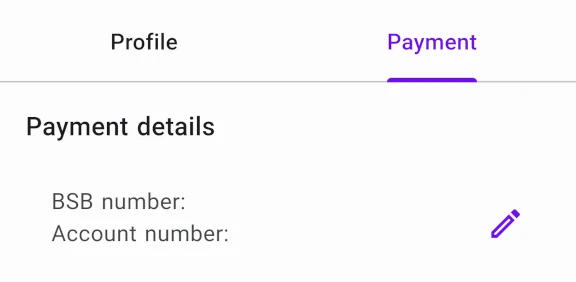
For QuickCare educators, you can see your payment details in your profile
Select the Profile menu in the app.

Choose the Payments tab, then edit your payment details.
Select your preferred shift in the shift details page. Browse through the details, and if you like what you see, click on the "Apply for shift" button at the bottom of the shift details page
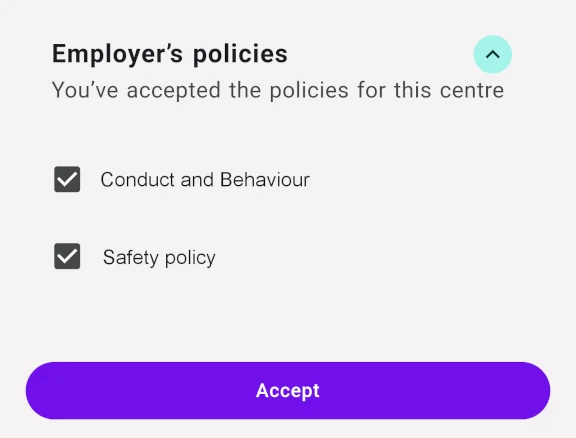
If this is the first time you'll be working for this particular employer, you will need to accept their policies. Please read through these policies, and also feel free to refer back to them if you need to. They'll always be available when you view your shift details.
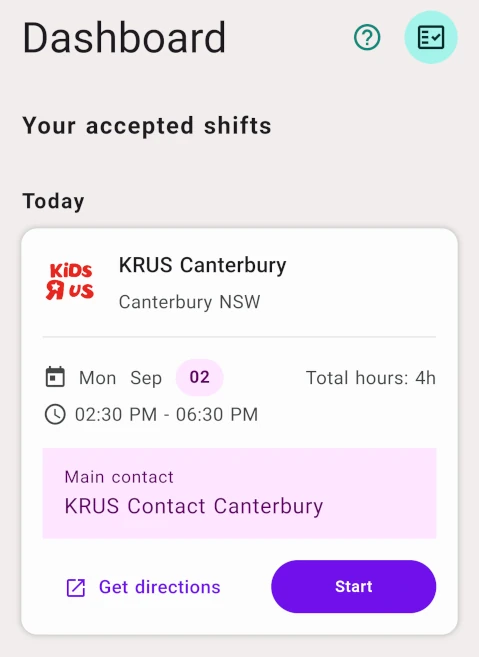
When you accept a shift, the shift will show up in your Dashboard as an upcoming shift.
You'll be notified the day before a shift starts, just to remind you about the agreed shift.
The QuickCare app will remind you of the shift the night before. 15 minutes prior to your shift you will get a check-in notification to begin the shift.
When you arrive at the centre, select the start shift button in the app. Please make sure you arrive at the centre prior to the start time of the shift so that you can:
- Check-in via the start shift button in the QuickCare App
- Allow for the Centre Manager to walk you through the centre
- Give yourself time to set up and be ready to give your best for the children at the centre
If you need to leave a shift prior to the agreed upon end time, please notify the centre manager of the situation so that they can act accordingly.
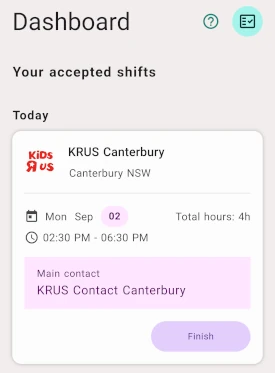
Once the Centre Manager has been made aware of the situation and has given the OK for your early departure please select the end shift button for the current shift you’re working.
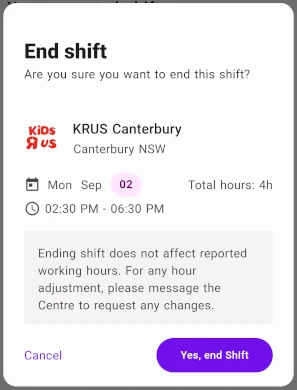
In the QuickCare app, the Centre Manager will adjust the hours to show what was worked and you will receive a notification of this change.
You should contact the Centre Manager first to see if the dispute can be resolved. If you’re at the centre with the Centre Manager, speak with them directly. Or you can use the app to send a message about the specific shift.
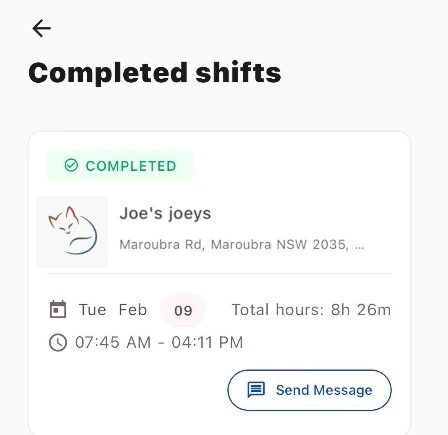
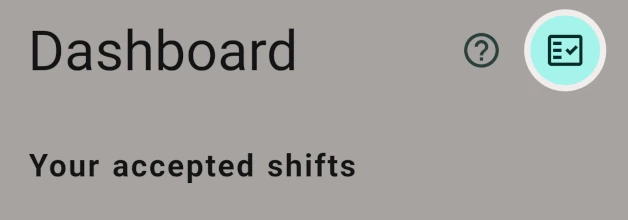
Please note that you will only be able to send a message within 5 days of the shift being completed. You can view your completed shifts via the completed shift icon in the dashboard screen.
Otherwise, please send Quickcare Support an email on support@quickcarehr.com, and we will be able to assist you in resolving the dispute.